Workflow automation via GitHub Actions
mei-friend aims to be a broadly useful editor. However, encoding projects often have requirements that could be usefully automated but are too specific to be implemented as built-in features. To accommodate, you can set up mei-friend to trigger automated processing of MEI files via GitHub Actions. To do so, you need to define so-called “work packages” – bundled processing operations such as transformation, validation, or pre/post-processing. Users can then select these from mei-friend’s interface to execute them on GitHub’s servers. This automated processing complements manual editing within mei-friend, but does not replace it.
To avoid having to replicate your automation logic across many repositories and to allow projects to share their automation logic, we separate the logic from the project data. The automation logic is maintained in a shared “central repository”. Users can access the logic from their working repositories where their encodings are kept which we refer to as “caller repositories”.
Step-by-step instructions for using automation in your project
1. Setting up the caller repository
- Go to the mei-friend caller repository template, click on “Use this template” and “Create a new repository”. This creates a new caller repository with the necessary caller workflow already set up.
- Add your own MEI files to this new repository – test files are also provided by the template.
2. Setting up work packages
Work packages set up the connection to the central repository and tell mei-friend about the available processing operations and their parameters. They are defined in a JSON file that is hosted at a publicly accessible, CORS-enabled URL (for example as a raw file in a public GitHub repository). You need to enter the URL of this JSON file in mei-friend’s settings in the “Work package definition” field. The following example file can be used for testing: work_packages.json.
Setup using an mei-friend link
To simplify this setup, the URL of the JSON file can also be supplied as a URL-parameter,?automation=...: https://staging.mei-friend.mdw.ac.at/?automation=https://raw.githubusercontent.com/mei-friend/automation/refs/heads/main/work_packages.json. This loads the work package definition when opening mei-friend.
To create your own work package definition, see Creating your own work package definition.
3. Running a work package from mei-friend
- Log in to GitHub in mei-friend and open a file from your caller repository.
- Open the “GitHub menu” (see GitHub integration) in the menu bar and click “GH Action: Call work package workflow”.
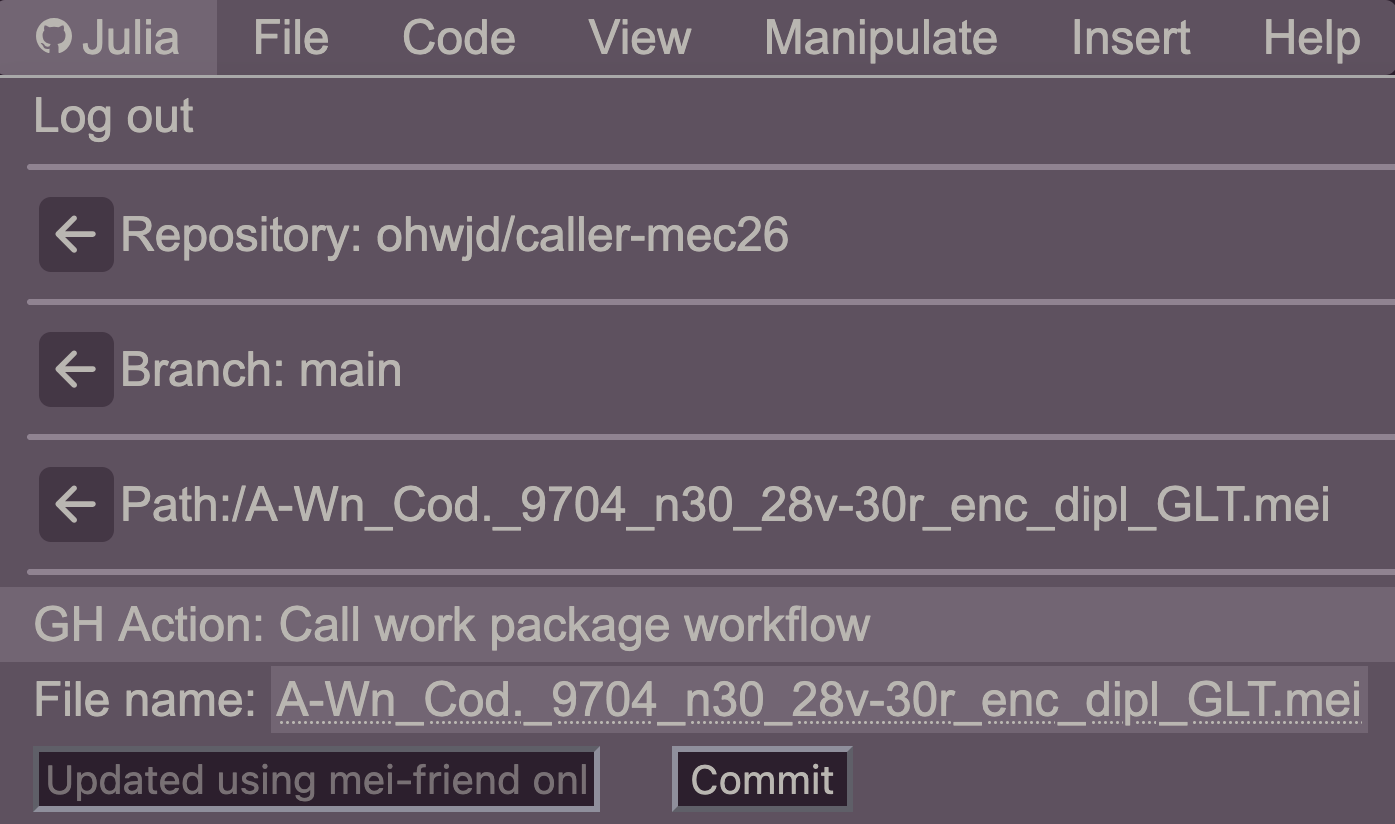
Where are my GitHub Actions?
If you do not see the GitHub Action options in the GitHub menu, go to Settings > mei-friend > Use GitHub Actions and ensure that the box "Show available GitHub Actions" is checked.- In the GitHub Action panel you should see a dropdown menu listing the available work packages defined in the JSON file.
- Select a work package and fill in the parameters as needed. Parameters may have pre-filled default values; adjust them to match your use case. Two helper buttons allow you to:
- paste the current file path into a parameter field, or
- paste the ID of the currently selected XML element into a parameter field.
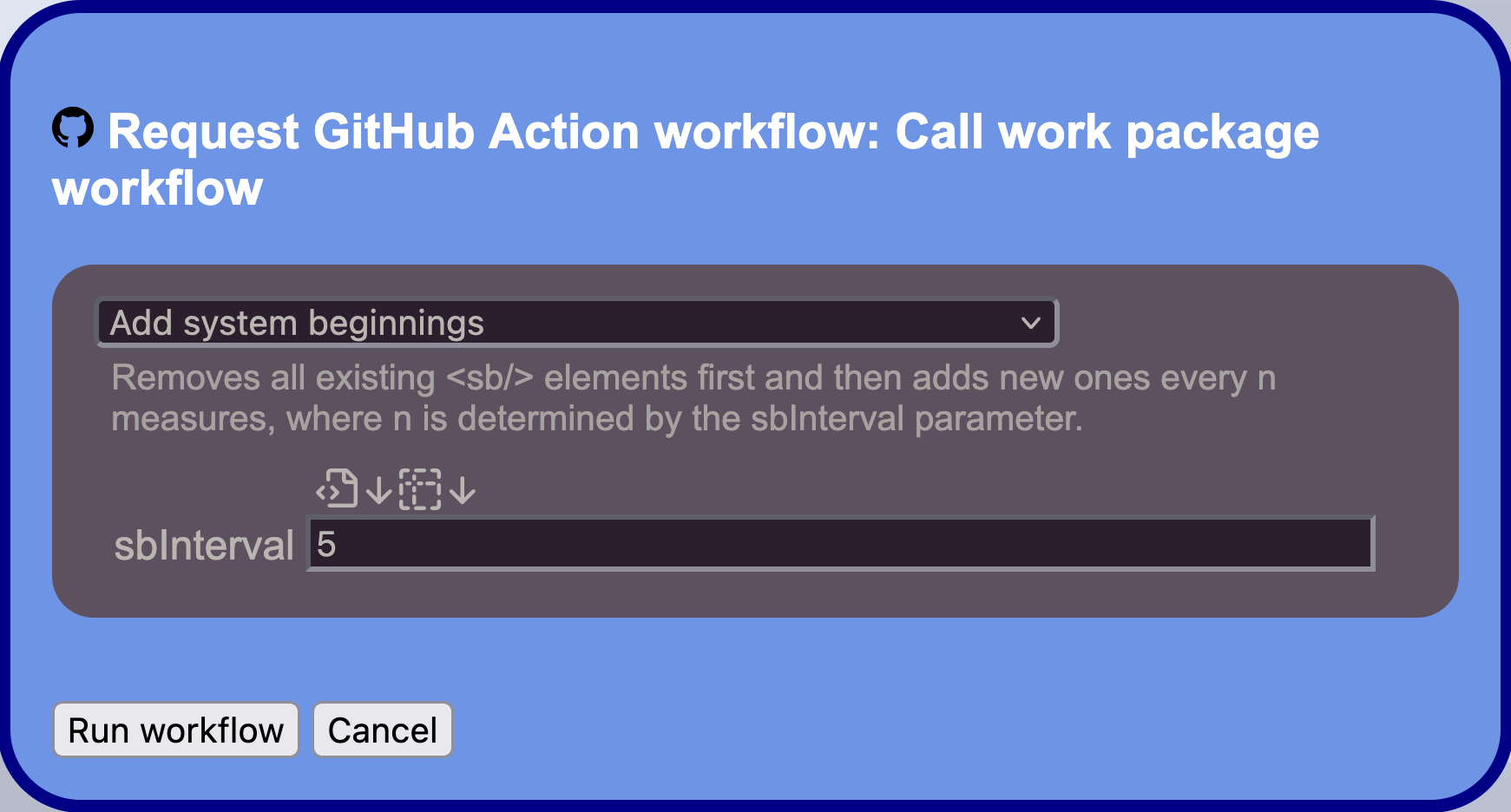
- Click “Run workflow” to execute the selected work package. Execution takes place on GitHub and may take some time; a progress bar in the panel indicates the current status. A link to the GitHub Actions workflow run log is also available in the panel once execution has started.
- Once completed, a success or failure message is shown in the panel.
- On success: if the work package produced changes to the encoding, they are committed to the caller repository. Click “Reload MEI file” to see the updated content in mei-friend. If the work package only generated a report without modifying any files, no commit is made.
- On failure: click the link in the panel to open the GitHub Actions workflow run log to inspect what went wrong.
Failure to complete workflow
If the final step "Commit changes" fails in the GitHub Actions workflow, verify that you have write access to the caller repository and try again.Creating your own work package definition
The JSON work package definition file controls which work packages appear in mei-friend’s GitHub Action panel and how they are presented to the user. It is hosted at a publicly accessible, CORS-enabled URL — for example as a raw file in a public GitHub repository — and referenced in mei-friend’s settings (see Setting up work packages).
A JSON template and a working example are provided in the central repository:
JSON file structure
The JSON file has the following top-level structure:
{
  "central_repository": "owner/repo",
  "branch": "main",
  "automation_path": "path/to/run_automation.sh",
  "work_packages": [ ... ]
}
| Field | Description |
|---|---|
central_repository |
The GitHub repository containing the processing scripts, in owner/repo format |
branch |
The branch of the central repository to use |
automation_path |
Path (relative to the central repository root) to the automation entry-point script |
work_packages |
Array of work package definitions (see below) |
These three top-level fields are passed directly as inputs to the caller workflow when a work package is triggered.
Work package definition
Each entry in the work_packages array defines a work package by:
- a name, displayed in the dropdown menu
- a description, shown as a tooltip in the panel
- a list of parameters, each with a type, optional default value, and description, rendered as labelled form fields in the GitHub Action panel
- a list of scripts to run when the work package is triggered
Depending on your needs, there are two levels of customization:
1. Writing a custom work package definition
If the scripts you need are already available in an existing central repository — such as the provided central repository or the E-LAUTE automation repository — you can define new work packages simply by writing a custom work package definition JSON file that points your caller repository to that repository. Each work package entry specifies which script to invoke and with which parameters, allowing you to create project-specific named work packages with tailored default values, expose only a relevant subset of available operations, or present existing scripts under clearer names for your project members.
Once your JSON file is hosted at a publicly accessible, CORS-enabled URL (for example in a public GitHub repository, pointing to the RAW file), provide that URL in the “Work package definition” field to load your work packages in mei-friend.
2. Setting up your own central repository
If you need processing logic not available in any existing central repository, you can set up your own with custom scripts. See Setting up your own central repository for step-by-step instructions.
Structure of the automation setup
The automation setup distinguishes between three main components:
- Caller repository: contains MEI files and a minimal GitHub Actions workflow (Caller repository template)
- Central repository: contains processing logic and workflow definitions (Central repository template)
- Work package definition: defines available work packages and their parameters in a JSON file (Work package template, Example work package)
Caller repository
The caller repository is the user’s own GitHub repository where MEI files are stored and versioned.
Beyond the project data, it contains only a minimal, generic GitHub Actions workflow file (caller.yml) that receives trigger events dispatched by mei-friend and carries out the processing using the central repository and automation script specified in the dispatch inputs.
The caller repository is easiest set up from the provided template, which already includes this caller workflow. The parameters ‘central repository’, ‘branch’, and ‘automation script’ are specified through the work package definition file — switching to a different central repository is done by pointing mei-friend to a different URL. Users need write access to the caller repository so that processing results can be committed back upon completion.
Central repository
The central repository contains the actual processing logic: the scripts (e.g., shell, Python or other) that implement the work packages, and an automation entry-point script whose path is specified in the work package definition file.
When triggered, the caller workflow checks out the central repository at the specified branch and runs the automation script with the dispatch inputs (work package ID, file path, parameters, etc.). The script has access to the caller repository’s data and commits any changes back to it upon completion.
The central and caller repositories are otherwise independent and may be owned by different users or GitHub organizations, allowing automation logic to be reused and shared across projects.
Execution flow
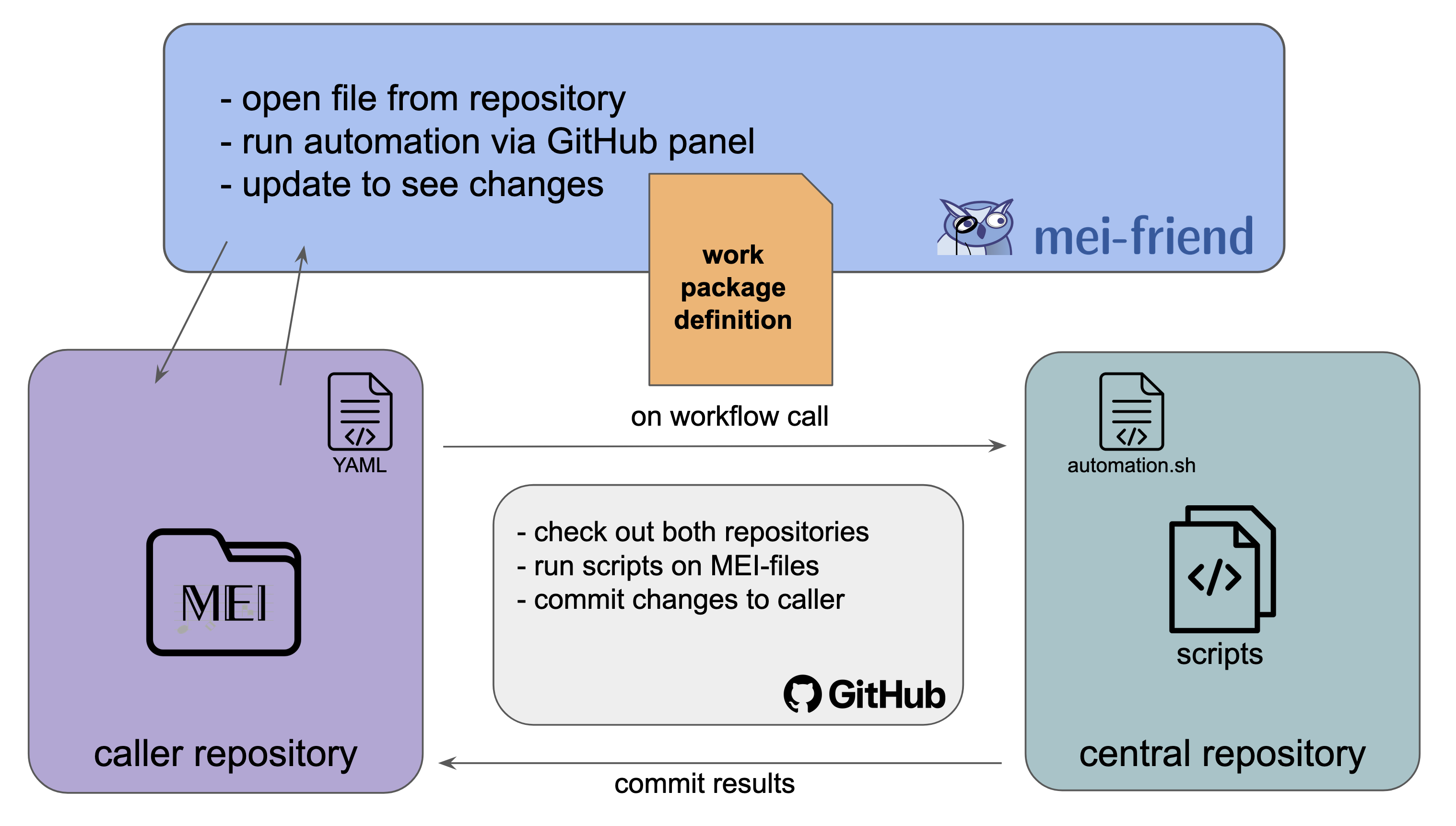
The following steps describe what happens when a user clicks “Run workflow” in mei-friend’s GitHub Action panel:
- mei-friend dispatches a
workflow_dispatchevent to the caller repository via the GitHub API. The dispatch payload includes: the selected work package ID and its full definition, the file path, the parameter values, a commit message, and the three central-repository routing fields from the work package definition file (central_repository,branch,automation_path). - The caller workflow checks out both the caller repository and the central repository using the supplied
central_repositoryandbranchand then runs the script at theautomation_path. - The automation script executes the work package’s processing logic against the caller repository’s data.
- If the script produces changes to the encoding, these are committed back to the caller repository.
- mei-friend polls the GitHub API for workflow status and reports success or failure in the panel. Upon success, the user can click “Reload MEI file” to see the updated content.
Setting up your own central repository
Setting up a custom central repository gives you full control over the available work packages and their implementation.
1. Create a central repository
Use the provided central repository as a template. Your central repository must contain:
- An automation entry-point script (e.g.,
run_automation.sh) that receives the dispatch inputs and executes the appropriate work package logic - The processing scripts (e.g., shell or Python) that implement your work packages (see coordinator.py as an example for an implementation of the automation logic)
- A JSON work package definition file with the
central_repository,branch, andautomation_pathfields pointing to your repository
2. Provide your work package definitions to mei-friend
Host your work package definitions at a publicly accessible, CORS-enabled URL and enter it in mei-friend’s “Work package definition” field. The central_repository and branch fields in the JSON tell the caller workflow where to find your scripts; no other configuration is needed in the caller repository.
Example use case: E-LAUTE
The E-LAUTE digital edition project uses this automation mechanism to manage encoding, derivation, and processing of several thousand MEI files across more than 50 GitHub repositories. The E-LAUTE central repository provides a set of work packages tailored to the project’s needs, including pre- and post-processing and validation against project-specific encoding guidelines.
Users can test the E-LAUTE automation functions using their own caller repository: In mei-friend’s GitHub Action panel, set the “Work package definition” URL to the E-LAUTE work package definition file:
https://raw.githubusercontent.com/e-laute/automation/refs/heads/main/scripts/work_packages.json
The JSON file already contains the correct central_repository, branch, and automation_path values pointing to the E-LAUTE central repository. Once the URL is set, open any MEI file from your caller repository in mei-friend. The GitHub Action panel will show the E-LAUTE work packages in the dropdown menu, ready to be applied to your encoding.